How to Connect AI Agents to Video Editing Tools
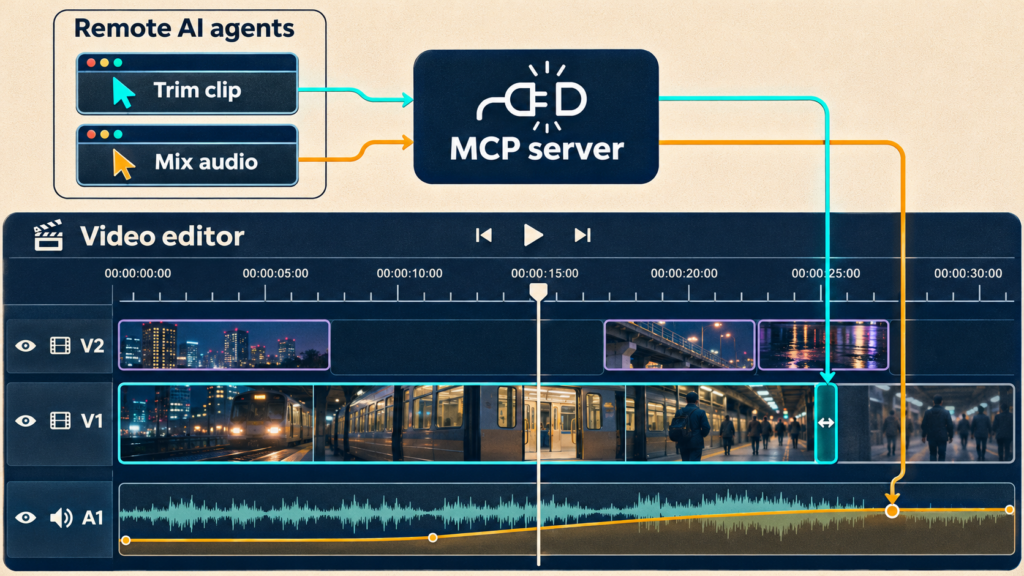
TL;DR: An AI agent can edit video through a compatible tool connection such as MCP, which lets an assistant call an editor’s available actions. Choose an editor that exposes the timeline work you need, connect it, give it clear project context, then review each change. The strongest workflow automates repetitive steps while leaving creative decisions and final approval with you.
Editing a video means repeating small tasks across many clips: finding a take, removing pauses, balancing sound, and preparing versions. An AI assistant can help, but it needs access to editing controls. A video editor as an MCP server connects a compatible assistant to those tools, so it can act instead of only offering chat advice. It helps with projects that have many clips or versions, while you keep the story and final choices in view.
AI output still needs human judgment. Forbes reports that 57% of respondents said AI-generated work needs moderate or extensive editing before publication.
This guide covers what the connection does, what to check, how to set it up, and how to direct a first edit. It also explains where invideo Editor fits. In practical terms, an assistant can take on a scoped operation, such as assembling a first cut, while you decide whether the structure works. The same approach can support color, sound, captions, or versions when the connected editor exposes those controls. The article follows that path, from choosing a compatible tool to reviewing a finished timeline. This applies to solo creators and teams, but each workflow still needs a person to check the story and details. Before connecting, know which task you want to delegate and what result you need before you begin.
What an MCP connection provides
Model Context Protocol, or MCP, lets an AI application connect with another service’s tools and data. In this case, the editor offers activities that the assistant can call, and the assistant is the client.
Choose the right connection
Decide what you want the agent to do. An editor may expose a few actions, such as transcript cuts, or let the agent work across a full timeline.
Check:
• Timeline access: Can it change clip order, timing, tracks, captions, or audio?
• Review and undo: Can you see changes, adjust them, or return to an earlier version?
• Media: Can it use existing footage, and how does the client pass files to the project?
• Delivery: Can you export a video or editable project?
• Cost: Check sign-in, assistant limits, and generated media charges.
A video editor as an MCP server should expose the controls your task needs. A first cut may need footage review, take selection, cleanup, and assembly. A social cutdown may also need reframing, captions, and a new version.
Set up a video editor as an MCP server
Connecting a video editor as an MCP server usually means adding it in the assistant’s settings, then signing in. Follow the current setup guide and check that your client supports remote MCP servers or custom connections.
With invideo Editor, the MCP endpoint provides setup routes for supported clients. ChatGPT users also need an account that supports custom apps; then sign in to an invideo account when prompted.
Ask the assistant to open or create the right project. Confirm the source files are available before requesting edits. If it cannot see a local file, use the client’s import method or upload media through the editor.
Approve sign-in, share only the media needed for the task, and keep the original footage for comparison.
Give the agent clear editing direction
Give context and request a focused pass. Say who the video is for, what viewers should learn, its target length, and what must stay untouched. Clear direction leads to more useful choices.
For an interview, a useful request could be: “Review the three interview recordings and assemble a four-minute first cut about the product launch. Keep one clear answer for each topic, remove repeated starts and long pauses, preserve the speaker’s meaning, and leave the opening and closing unchanged. Put the result on a new timeline version so I can compare it.”
Review the story first. Check key answers, natural transitions, and whether the speaker’s meaning stays intact. Then request a separate pass on captions, sound, color, or vertical framing.
Using a video editor as an MCP server in stages makes mistakes easier to spot. If an instruction changes the wrong section, refer to a clip name, topic, or timestamp. Ask for one revision at a time and say which approved parts should remain.
Review the timeline and refine it
An agent can handle repeat tasks, while an editable timeline keeps the work visible. Watch the cut, listen to the audio, and check captions against the words. A text summary may not reveal a broken pause, clipped word, or hidden face.
Invideo Editor is one example. Through its MCP connection, an assistant works on the same browser-based timeline that you can edit by hand. Supported tasks include rough cuts, color correction, audio mixing, captions, and media generation.
Through its MCP connection, invideo Editor can be used as an MCP video editing server from a compatible AI client to edit professional nonlinear editing timelines, correct footage color, mix audio, and generate images, video, and audio. The result stays on an editable timeline that you can watch and refine in the browser. Generating images, video, or audio, or using AI models may use invideo credits, and your assistant’s own plan limits still apply.
Prepare a useful handoff
When approved, export a finished video to publish, an editable project for continued editing, or a review link for feedback.
A video editor as an MCP server still needs review. Make a scoped request, inspect the timeline, and keep the final creative call for yourself.
Conclusion
A video editor as an MCP server gives an AI assistant access to the editing tools a product makes available. Good results start with a clear task, useful context, and a timeline review.
Use an agent for repeatable tasks such as sorting takes, assembling a cut, preparing versions, or making an audio pass. Keep story choices and final approval in your hands. Invideo Editor is one option, with an MCP connection to an editable timeline.
Try one focused pass and see if it removes a bottleneck. Expand it when it helps your workflow. Which editing task would you hand to an agent first?
Frequently Asked Questions
Does every AI agent work with every video editor?
No. The assistant must support the connection type, and the editor must provide compatible tools. Check both products’ current setup guides before choosing a workflow. Also confirm that your account includes the connection option. Support for one client does not mean every app or desktop version has the same setup.
Can I edit while an AI agent works?
That depends on the editor. In invideo Editor, the MCP workflow uses the same timeline a person can open and edit, so you can watch changes and continue refining them in the browser. This makes it easier to check a cut, adjust timing, or change a creative choice yourself. Check other editors for their collaboration controls.
Does an MCP connection make a finished video automatically?
Not by itself. MCP connects an assistant to tools. The assistant still needs direction, the editor needs the required capabilities, and a person should review the result before delivery. You may need separate steps for editing, generating media, and exporting. Review the complete timeline and confirm the output meets your project needs.
Does using an agent cost extra?
Costs depend on the editor, assistant, and task. For invideo, ordinary editing through MCP is described separately from generated media; creating new images, video, or audio can use invideo credits, and the external assistant’s plan limits still apply. Check the current terms before starting, especially when the request includes generated assets. The assistant’s subscription and message limits are separate from the editor’s usage.
Get launch updates from Aavot
One email when the official app ships. No spam, unsubscribe anytime.